How to Integrate Sliplane MCP Server with Windsurf
 Atakan Öztarak
As AI agents become more powerful, Vibecoding is taking over. You just want to build cool apps and ship them, not spend hours wrestling with Dockerfiles, SSH keys, or server configs.
The Model Context Protocol (MCP) changes the game. It lets your AI agent (in this case, Windsurf) talk directly to Sliplane to deploy your apps for you.
In this guide, I'll show you how to set up the Sliplane MCP Server so you can just tell Windsurf: "Here is my code, deploy it."
What You Can Do
Forget about manual deployments. With this integration, you can stay in your flow and let Windsurf handle the boring stuff.
Just "Vibe Code" your infrastructure: You don't need to know how to write a compose file. Just ask:
"Deploy this app for me"
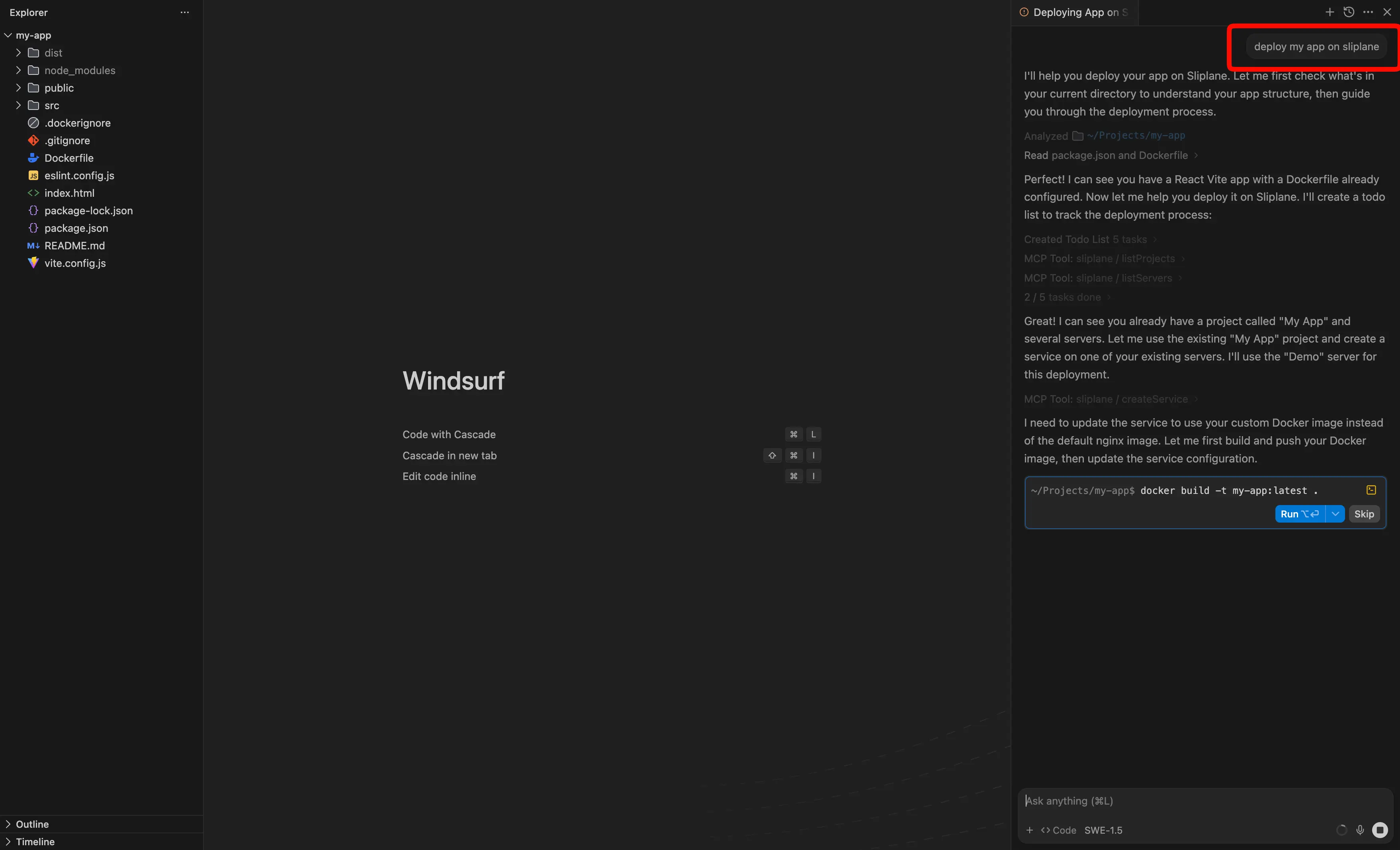
Check on your apps without leaving your editor:
"My app is not running, check the logs and fix it"
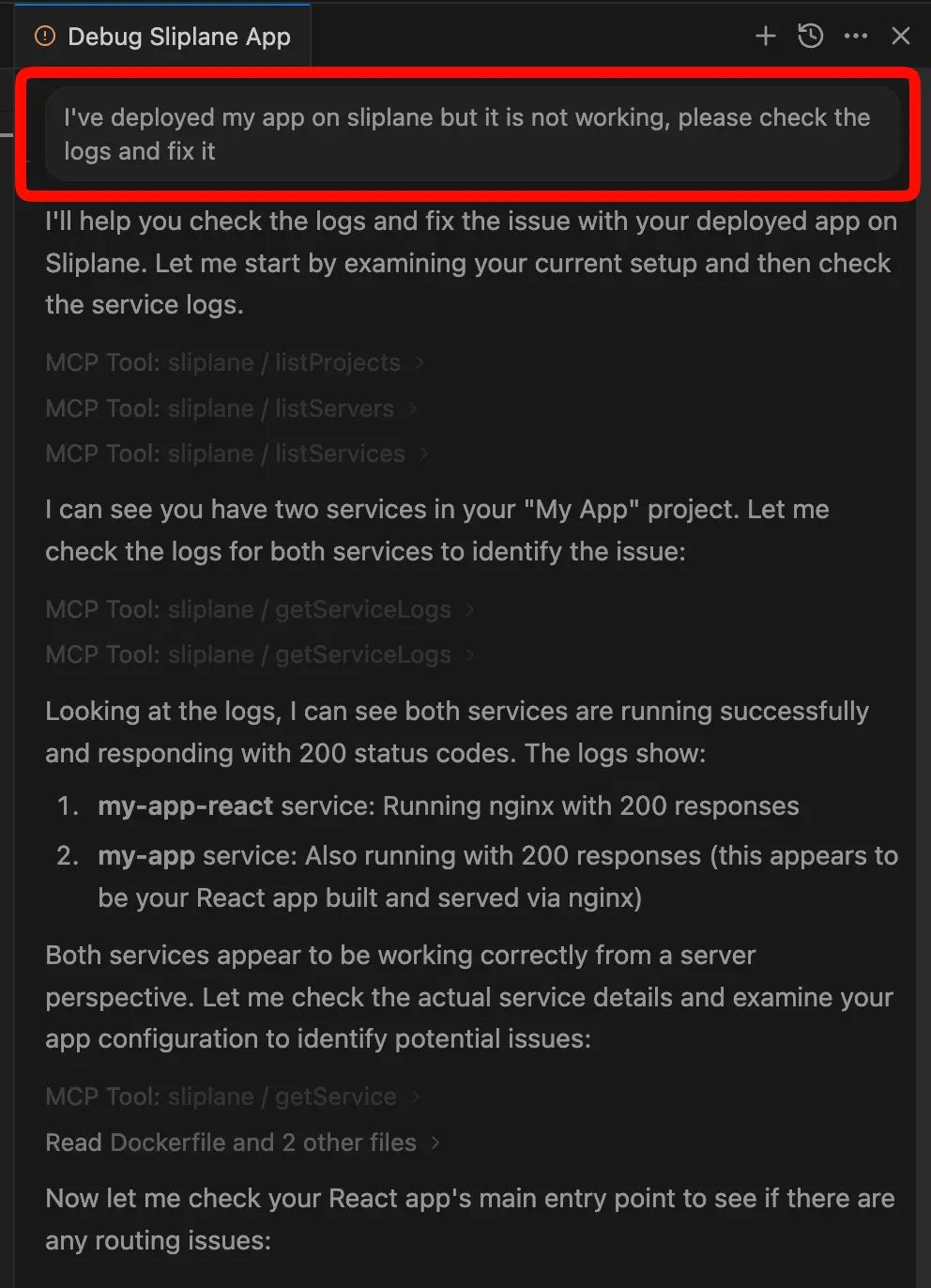
The agent uses the Sliplane API to figure out the details, create the server, and get your app live. It's the ultimate tool for vibecoders who want to ship fast.
Warning: LLMs can make mistakes. Always double-check what the agent is doing and verify the plan before approving any actions.
Step 1: Get Your API Key
To connect Windsurf to your Sliplane account, you need an API Key.
- Log in to your Sliplane dashboard.

- Navigate to your Team Settings. Then, click on Team in the left sidebar.

- Navigate to the API tab, then click on Create API Key button.

- After you give a name to your API Key, click on Create Api Key button.

- Copy the API Key. Make sure to save it safely, as you won't be able to see it again.

Step 2: Configure Windsurf
Now, you need to tell Windsurf how to run the Sliplane MCP server.
- Open Windsurf and navigate to the MCP Servers section.
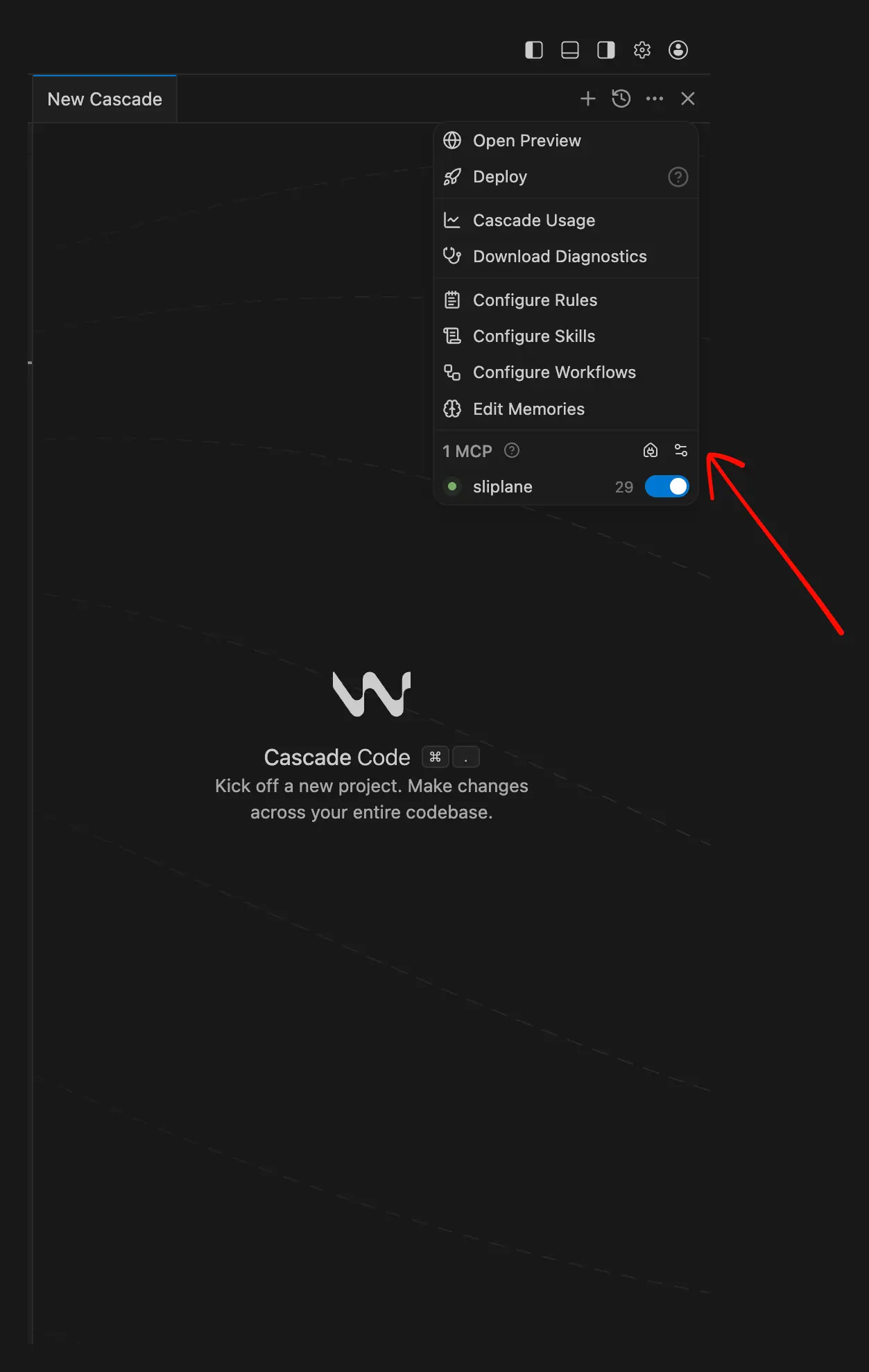
- Click on Configure or Add New Server and enter the configuration details. You'll need to specify the command and environment variables.
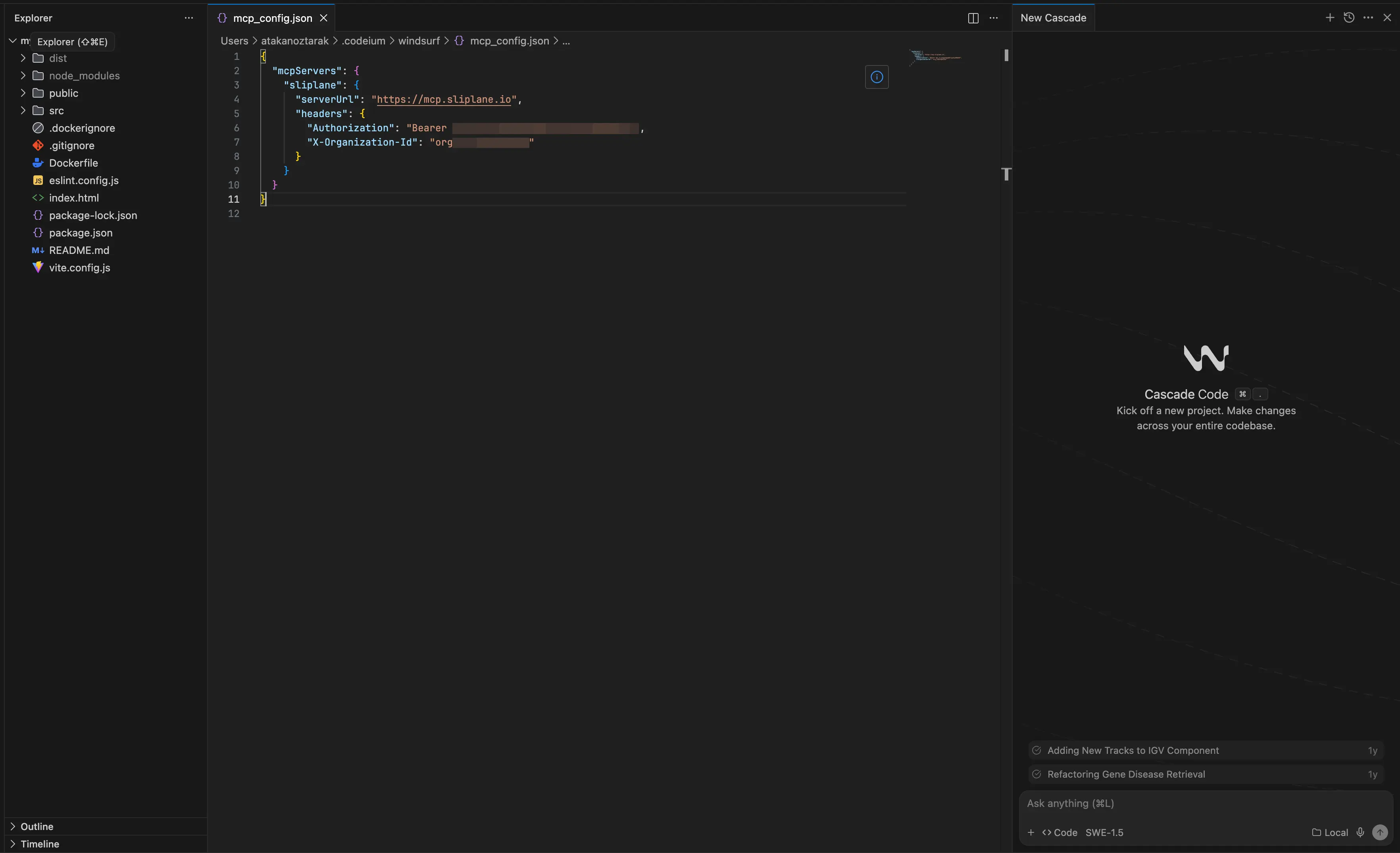
Use the following configuration:{ "mcpServers": { "sliplane": { "url": "https://mcp.sliplane.io", "headers": { "Authorization": "Bearer YOUR_API_KEY_HERE" } } } }
Important:- Replace
YOUR_API_KEY_HEREwith the token you created.
- Replace
Step 3: Start Chatting
Restart Windsurf to load the new changes. You should now see the sliplane tool available in your MCP tools list.
Try asking:
"List my Sliplane servers"
If everything is set up correctly, Windsurf will fetch your server list directly from Sliplane.
Conclusion
You've just unlocked the ultimate vibecoding workflow. By integrating the Sliplane MCP server, you've turned Windsurf into a powerful DevOps assistant that does the heavy lifting for you.
Now you can focus on building, and let the agent handle the shipping.
Happy coding!
Cheers, Atakan