
How to Integrate Sliplane MCP Server with Claude Code
 Atakan Öztarak
Claude Code is Anthropic's new agentic coding tool that lives in your terminal. It's fast, powerful, and now... it can deploy your apps.
By integrating the Sliplane MCP Server, you can turn Claude Code into a full-stack DevOps engineer. No more context switching to the browser to check logs or deployments. Just tell Claude what to do.
What You Can Do
With Sliplane and Claude Code, you can ship features and fix bugs without ever leaving your terminal.
Deploy changes instantly: Just ask Claude to deploy the current directory, and it handles the rest.
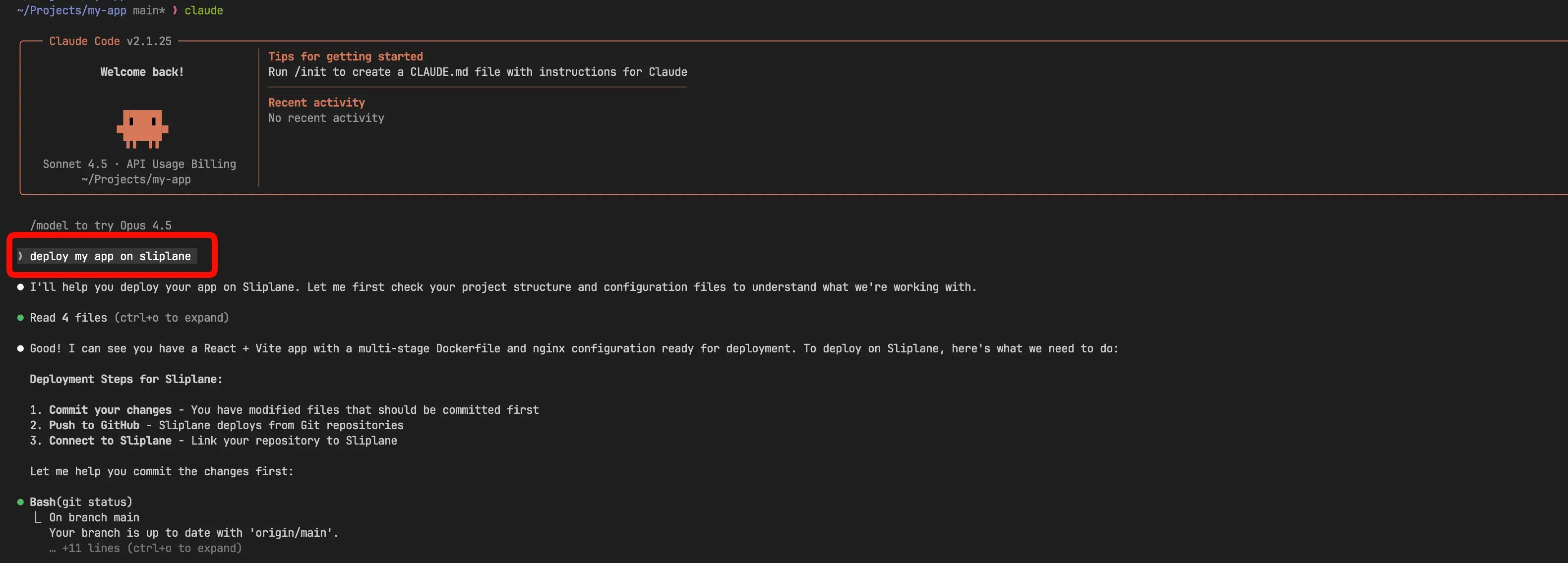
Debug live issues:
"My app is failing, check the logs on Sliplane and fix the bug."
The agent can read your production logs, identify the error, write the fix, and redeploy it. It's the ultimate vibecoding workflow.
Warning: LLMs can make mistakes. Always double-check what the agent is doing and verify the plan before approving any actions.
Step 1: Get Your API Key
To connect Claude Code to your Sliplane account, you need an API Key.
- Log in to your Sliplane dashboard.

- Navigate to your Team Settings. Then, click on Team in the left sidebar.

- Navigate to the API tab, then click on Create API Key button.

- After you give a name to your API Key, click on Create Api Key button.

- Copy the API Key. Make sure to save it safely, as you won't be able to see it again.
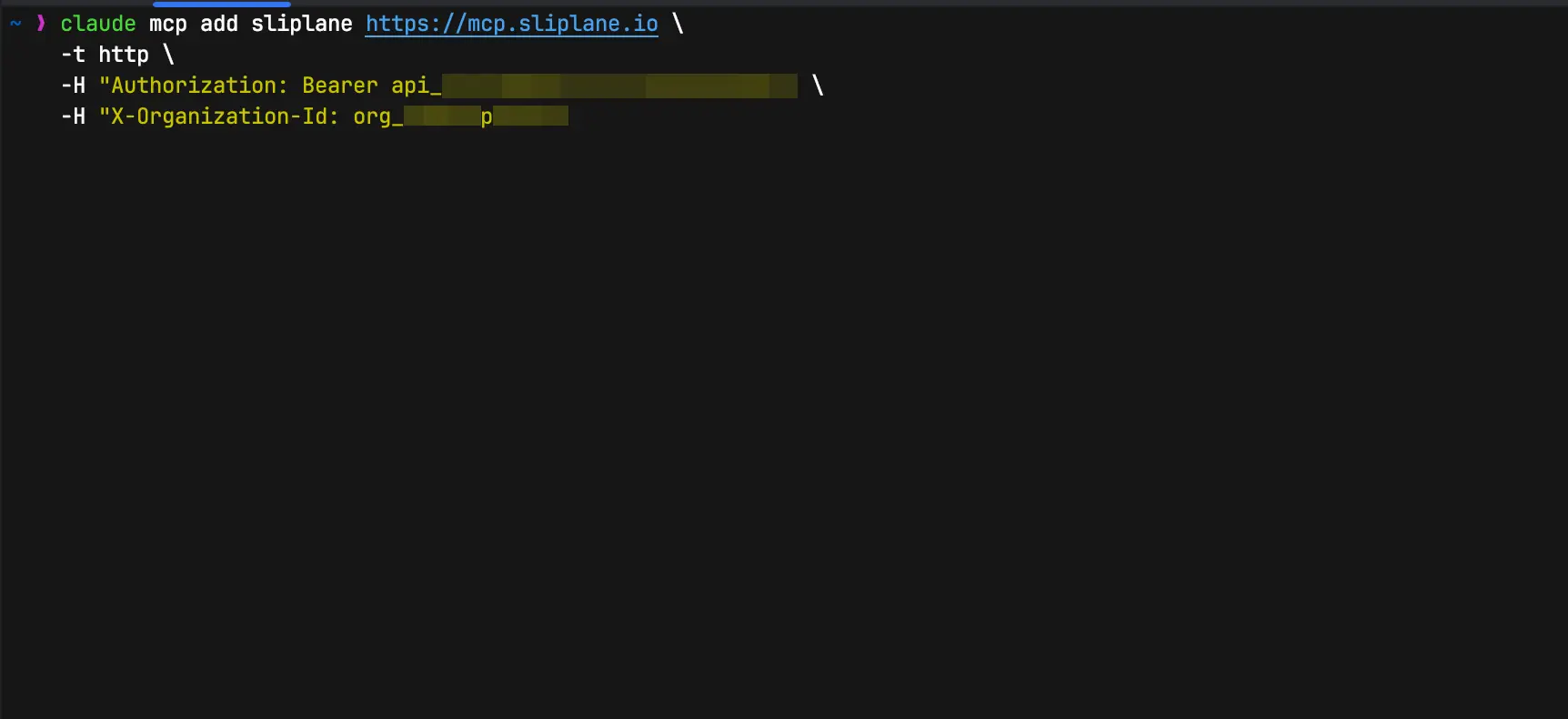
- Add the MCP server to Claude Code.
Step 2: Configure Claude Code
Now, you need to add the Sliplane MCP server to Claude Code. Since Claude Code runs in your terminal, we can configure it with a single command.
For macOS / Linux:
claude mcp add sliplane https://mcp.sliplane.io \
    -t http \
    -H "Authorization: Bearer YOUR_API_KEY_HERE"
For Windows (PowerShell):
claude mcp add sliplane https://mcp.sliplane.io `
    -t http `
    -H "Authorization: Bearer YOUR_API_KEY_HERE"
Important:
- Replace
YOUR_API_KEY_HEREwith the token you created.
This command tells Claude Code to connect to the Sliplane MCP server securely.
Step 3: Verify Installation
After running the command, you can verify that the server was added successfully.
- Run
claude mcp listin your terminal to see all active MCP servers.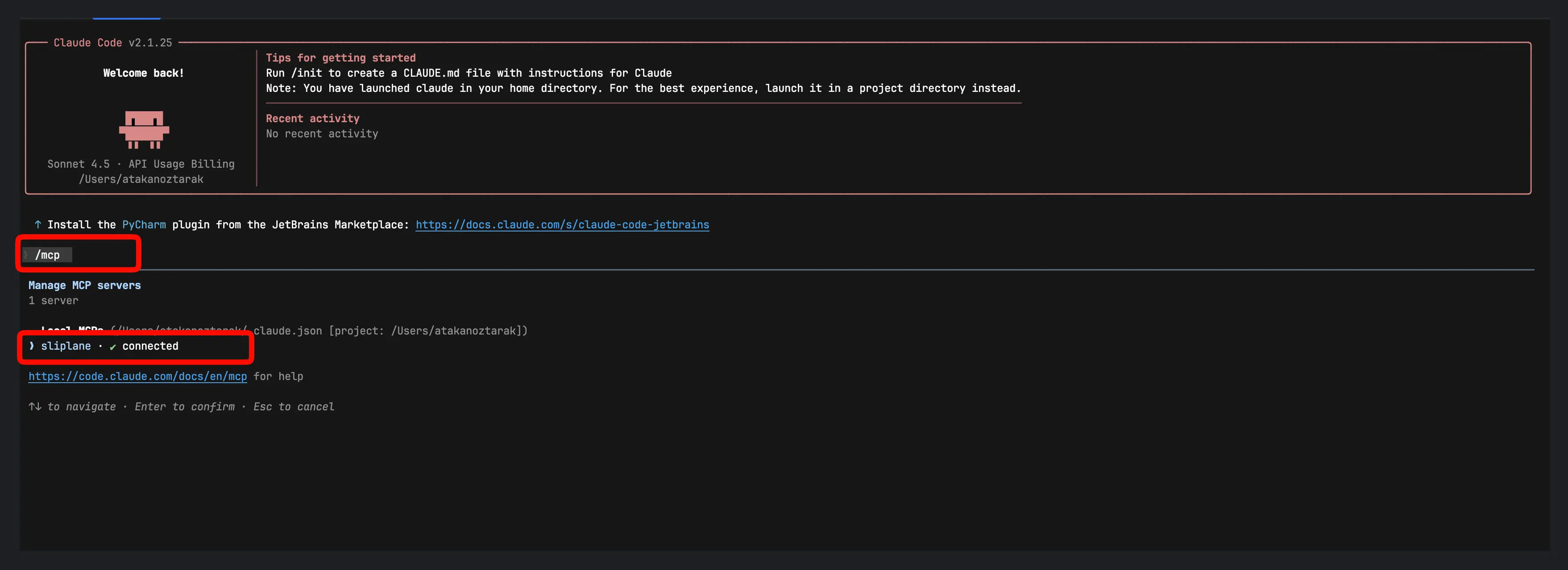
- Alternatively, you can type
/mcpinside a Claude Code session to check the status. You should see Sliplane listed as an active server.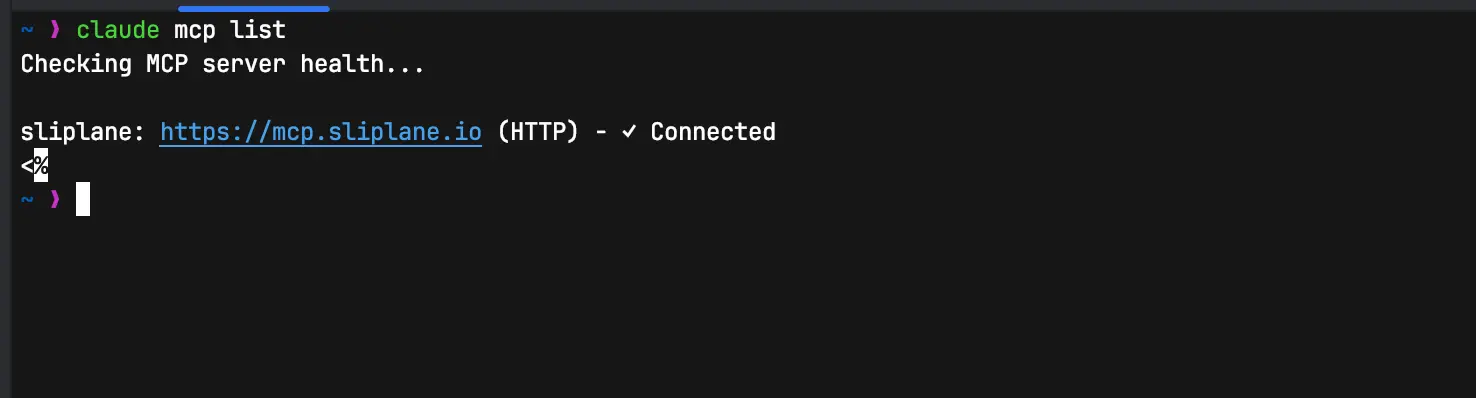
Step 4: Start Chatting
Once added, the tool is immediately available. You can verify it by asking:
"List my Sliplane tools"
Or just start deploying:
"Deploy this project to Sliplane"
Conclusion
You've just unlocked a powerful new workflow. With Claude Code and Sliplane, you can build, debug, and deploy faster than ever before.
Happy vibecoding!
Cheers, Atakan