
How to Dockerize and Deploy a Hono App
 Jonas Scholz
Hono can run on several runtimes. For this guide, I use the Node.js adapter and run the TypeScript source with tsx. That gives us a small setup without a separate compilation step.
Create the app
If you already have a Hono app using @hono/node-server, skip the project creation step:
npm create hono@latest example-hono
cd example-hono
npm install
Select the nodejs template when prompted.
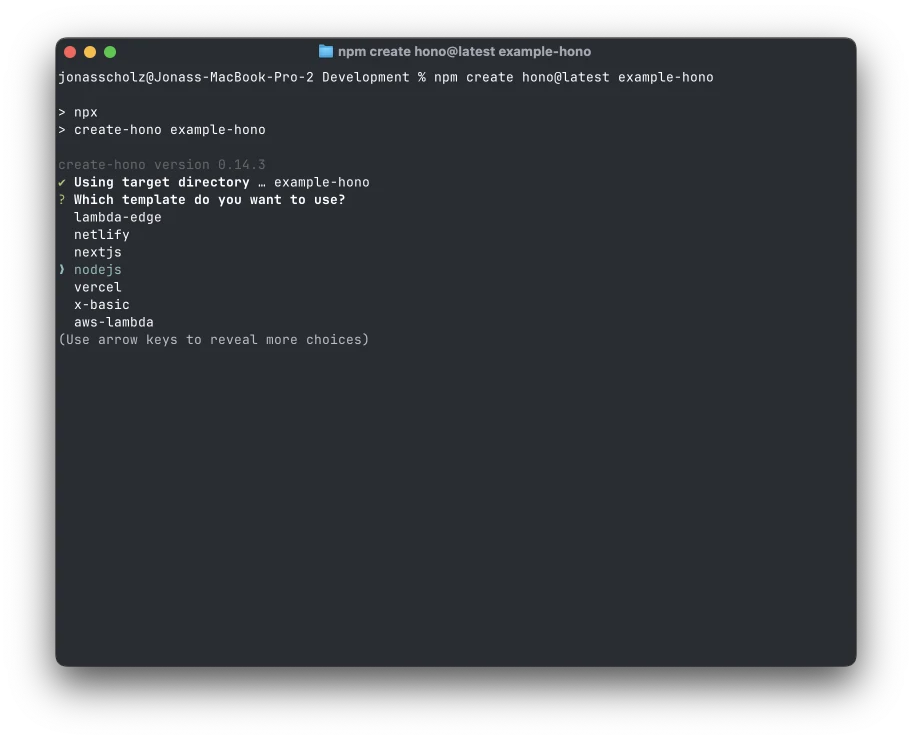
Start the development server with npm run dev and open http://localhost:3000. Stop it before testing another server on the same port.
Set the host and port
Use this in src/index.ts:
import { serve } from "@hono/node-server";
import { Hono } from "hono";

const app = new Hono();
app.get("/", (c) => c.text("Hello Hono!"));

const port = Number(process.env.PORT ?? 3000);
serve({ fetch: app.fetch, port, hostname: "0.0.0.0" });
process.env.PORT is a string, so convert it to a number before passing it to the server. The host must accept connections through Docker's network interface.
Make sure tsx is installed and add these scripts to the existing package.json. Keep the rest of the file:
{
  "scripts": {
    "start": "tsx src/index.ts",
    "dev": "tsx watch src/index.ts"
  }
}
Run npm run start to check the command. You can also try PORT=8888 npm run start to check that changing the port works.
Add the Dockerfile
FROM node:24-bookworm-slim
WORKDIR /app
COPY --chown=node:node package.json package-lock.json ./
RUN chown node:node /app
USER node
RUN npm ci
COPY --chown=node:node . .
ENV NODE_ENV=production
ENV PORT=3000
EXPOSE 3000
CMD ["npm", "run", "start"]
npm ci installs the versions from package-lock.json. Commit that file. This image deliberately includes development dependencies because tsx is commonly listed there and is needed at runtime in this setup. Do not add --omit=dev without moving the required runtime packages or changing to a compiled build.
The files are copied with ownership set to node before npm ci runs as that user. Otherwise, a non-root install can fail when it tries to create node_modules in a root-owned directory.
Add a .dockerignore:
.git
node_modules
dist
.env
.env.*
npm-debug.log
Build and start the container:
docker build -t hono-app .
docker run --rm --name hono-app -p 3000:3000 hono-app
The root URL should return Hello Hono!. For an app that already compiles to JavaScript, keep its build process and start the compiled entry point instead of adding tsx just for this Dockerfile. The Hono Node.js guide describes the adapter.
Deploy from GitHub
Commit the files, then create a service in Sliplane and select your repository. Use the Dockerfile at the project root and HTTP port 3000.
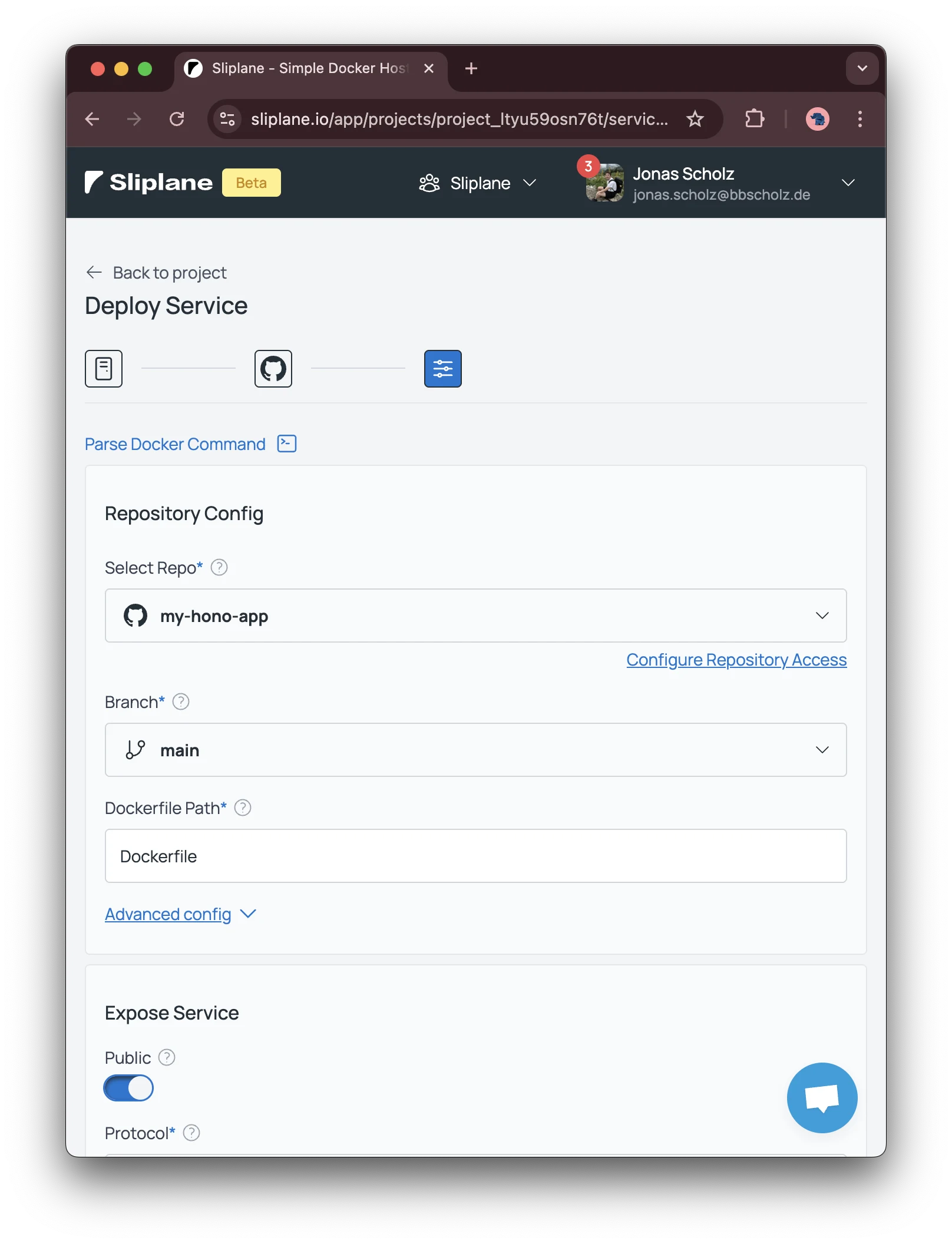
The screenshot is from the original tutorial; the interface can differ. After deployment, open the service URL and check the response and logs. Set application secrets as service environment variables.