5 Docker Commands You Don't Know Yet
 Jonas Scholz
Once you know docker build, run, and logs, a few less obvious commands make debugging much easier. These are five I use to see what Docker is doing and get files out of containers.
1. docker system df
Docker images, stopped containers, volumes, and build cache can use a lot of disk space. Start by measuring it:
docker system df
docker system df -v
The verbose version breaks down the objects behind the totals. Shared image layers mean you should not simply add every displayed image size together.
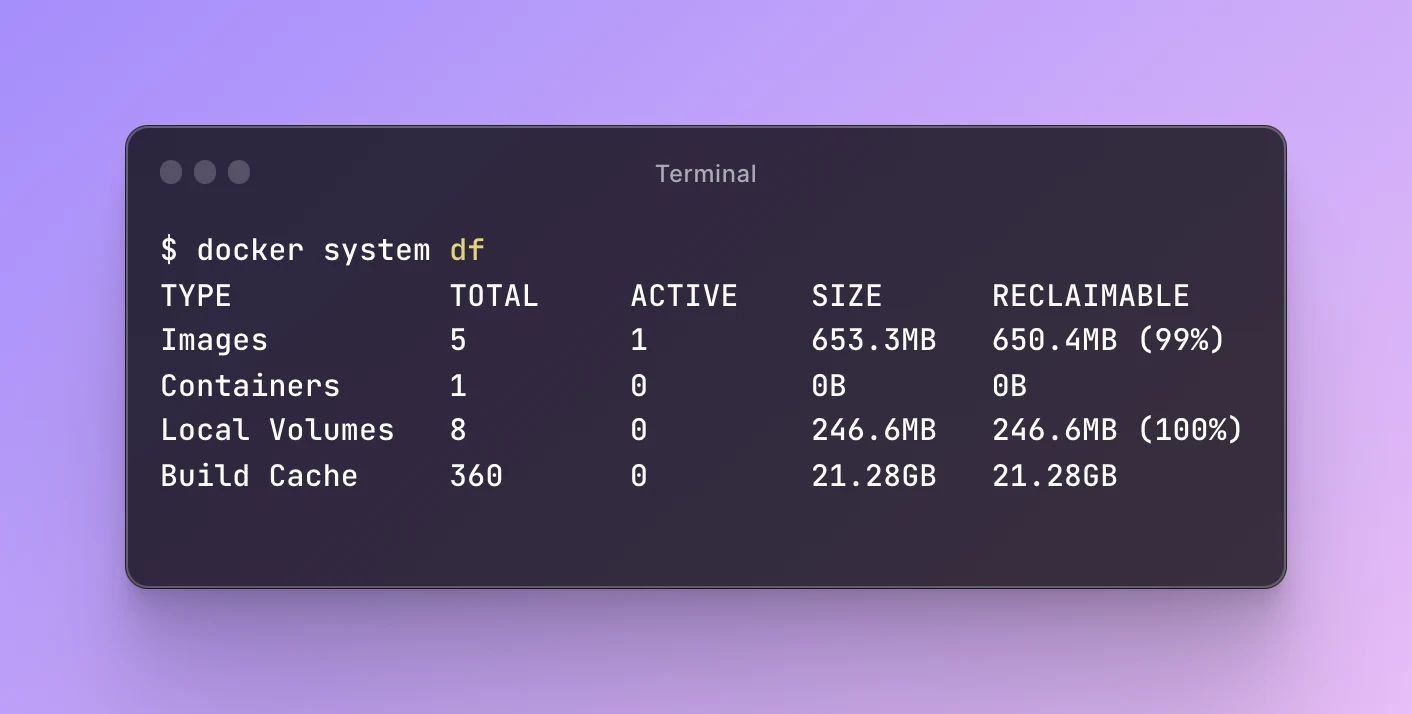
If you decide to clean up, read the confirmation for the specific prune command. docker system prune --all removes stopped containers, unused networks, unused images, and build cache. That can remove images you intended to keep for rollback. Volumes are not removed by that command unless you also request volume pruning. The Docker pruning guide explains the scope of each command.
2. docker stats
To see CPU, memory, network, and block I/O for running containers:
docker stats
For a single snapshot of one container:
docker stats --no-stream myapp
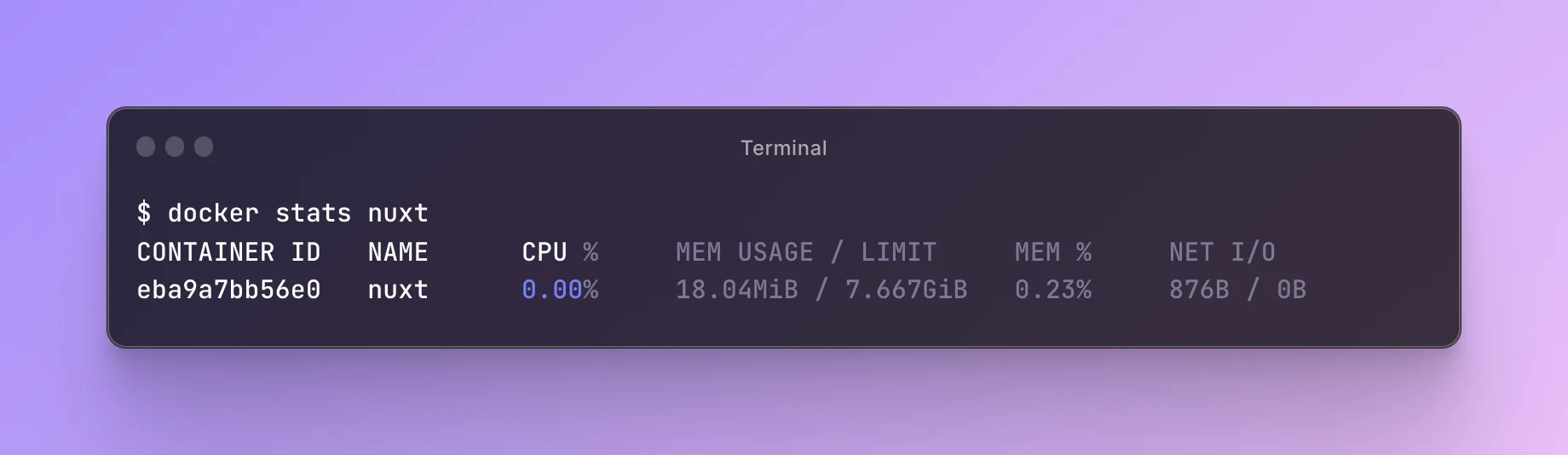
This is useful when an unfamiliar container consumes more memory than expected. It gives you a live view, not a historical monitoring system. Capture metrics over time if you need to investigate intermittent problems.
3. Limit a BuildKit worker's CPU
The original post used docker build --cpu-quota. That belongs to the legacy builder and is not a portable instruction for modern BuildKit builds. A separate Buildx builder with the docker-container driver lets you limit the worker container instead:
docker buildx create --name limited-builder --driver docker-container   --driver-opt cpu-period=100000,cpu-quota=200000
docker buildx build --builder limited-builder --load -t myapp .
With a period of 100000 and quota of 200000, the worker gets at most two CPUs' worth of time. This does not reserve two dedicated cores. Choose a smaller or larger quota for your machine. On Docker Desktop, it is also bounded by the resources assigned to the Linux VM.
--load loads a single-platform result into your local Docker image store. The builder has its own cache. When you no longer need it, docker buildx rm limited-builder removes that builder and its managed state. See the Docker container driver options.
4. docker cp
Copy a file from a container without installing extra tools inside it:
docker cp myapp:/app/output.json ./output.json
The reverse direction works too:
docker cp ./input.json myapp:/app/input.json
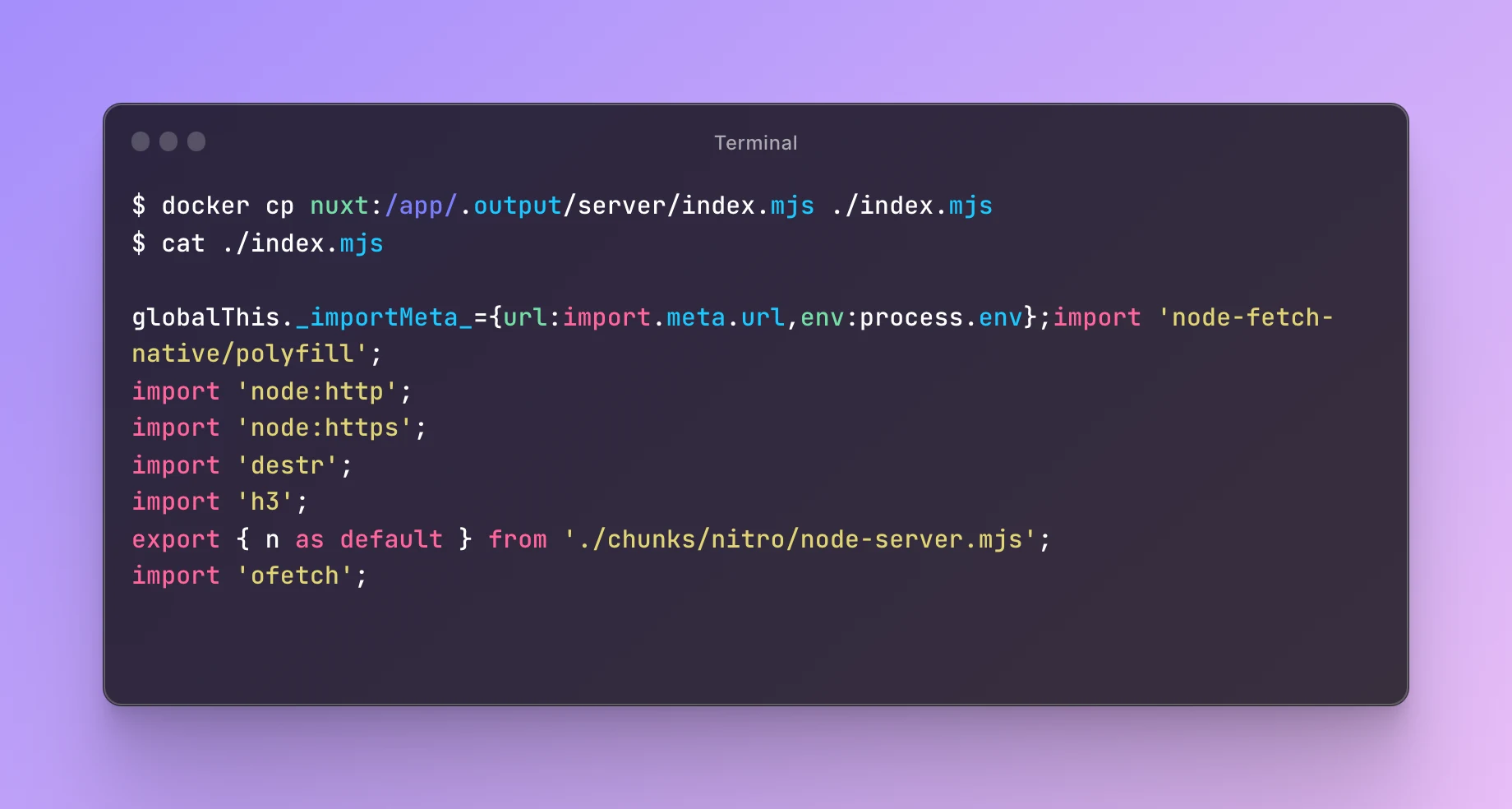
The container does not need to be running. Check the destination path and permissions, and remember that changing a container's writable layer does not change the image. For data that must persist, use a volume or another persistent store.
5. docker top
To inspect the processes running inside a container:
docker top myapp
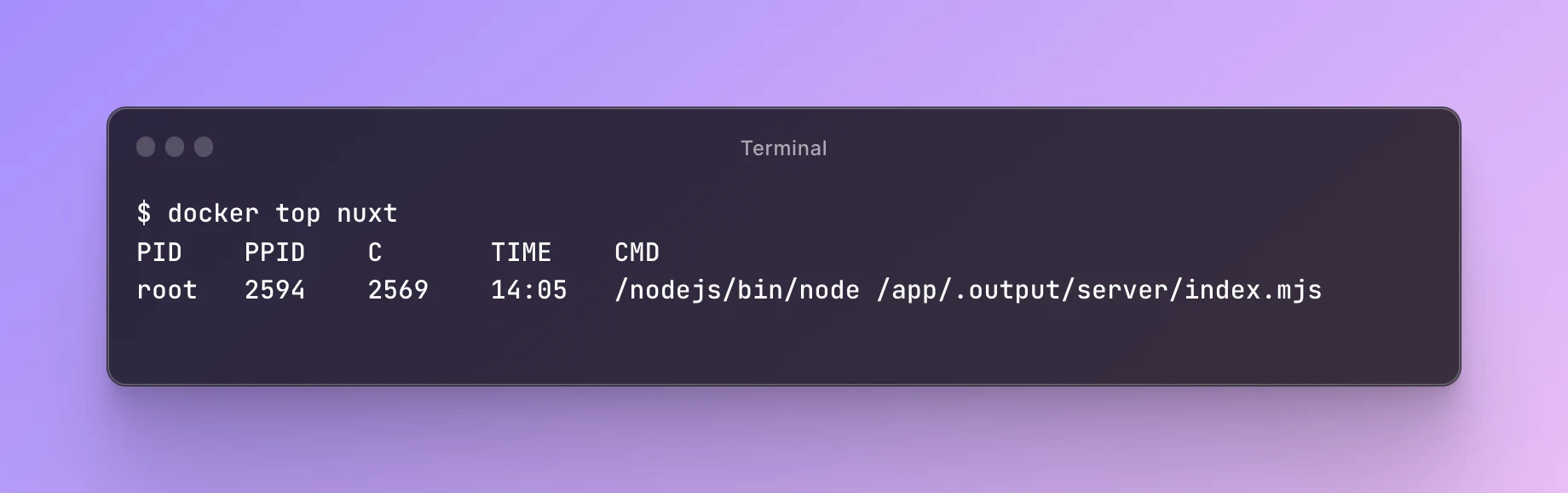
This is a quick way to check what your CMD actually started. You can see whether a shell or package manager is sitting in front of the process you expected. You do not need to install ps in the image just to inspect it from the host.
For more detail, see our guides to docker stats and docker cp. If you want to deploy the app after debugging it, Sliplane can build and run it from your repository.